Meticulate
INTEGRATION GUIDE
Follow this guide to connect your account, configure sync behavior, verify a record, and manage the connection over time.
The HubSpot integration is available to every Meticulate customer and works with HubSpot Free. You’ll need an active Meticulate workspace, a Meticulate administrator, and access to the HubSpot account you want to connect. In HubSpot, installation requires Super Admin or App Marketplace access; your HubSpot administrator may also need to grant access to the requested CRM data.
Use the HubSpot account your team works in. If your Meticulate workspace already uses another CRM, contact your Meticulate team before changing the connection.
Sign in to Meticulate and open Config from the sidebar. Select CRM sync.
Click Connect CRM, then select HubSpot in the connection window.
Sign in to HubSpot if prompted. Select the account you want to connect and continue.
Review the app name, account, and requested permissions on HubSpot’s approval screen. Click Connect app when you are ready.
Return to Meticulate. Open Config → CRM sync and check for the HubSpot connected status.
On HubSpot’s approval screen, check that you are connecting Meticulate to the intended account. Review required and optional permissions, and expand Currently Granted if it appears. The screen lists access to CRM data and property settings, lists, subscription preferences, forms, marketing events, CRM users, and emails. Optional permissions may depend on your HubSpot plan. Click Connect app to authorize the connection.
Open CRM sync and click Connect CRM

In Meticulate, open Config → CRM sync, then click Connect CRM.
Choose HubSpot

Select HubSpot from the integration window. Sign in and choose the intended account if prompted.
Review access and connect
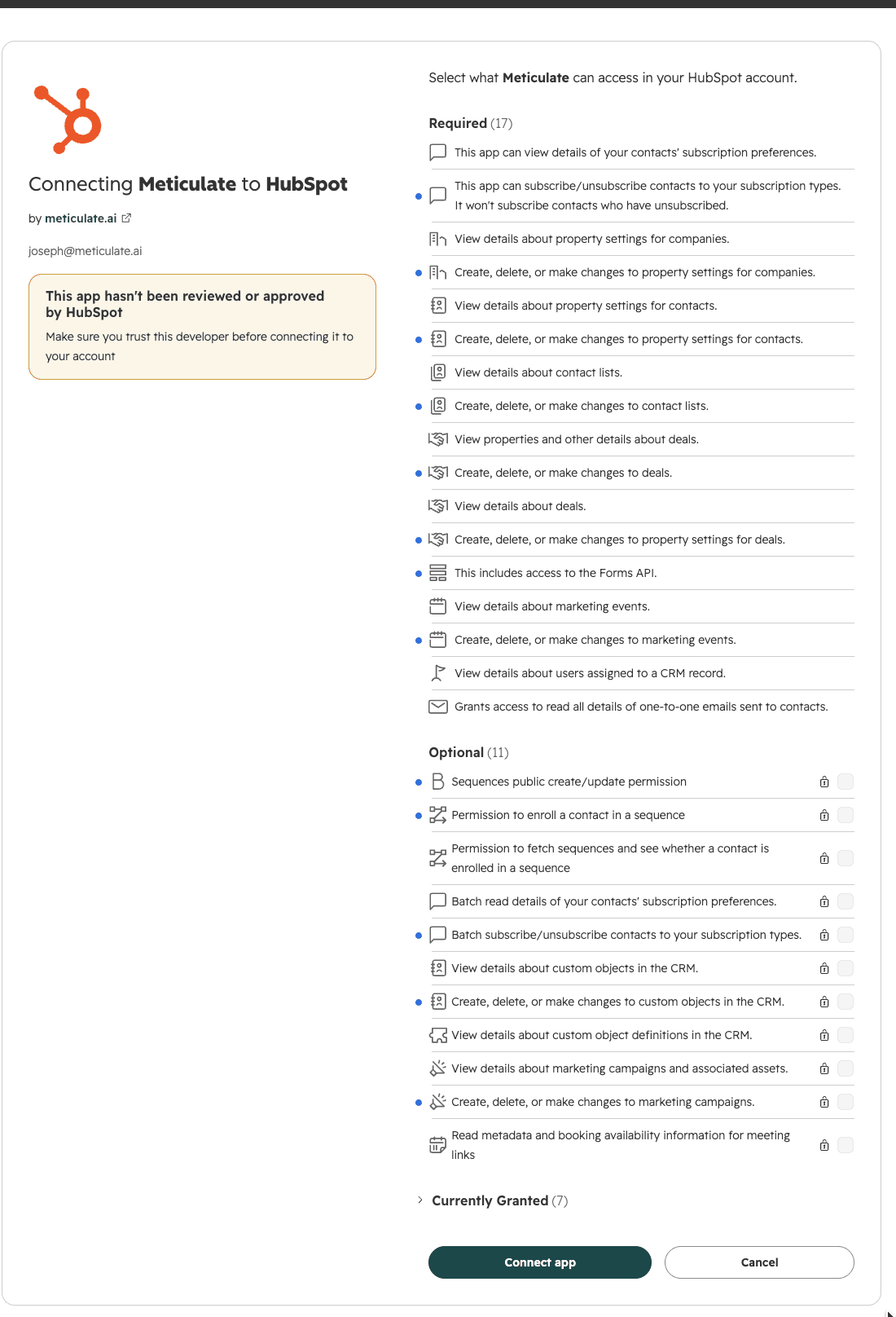
HubSpot shows the permissions requested by Meticulate. Review the full screen, including any currently granted permissions, then click Connect app.
In Config → CRM sync, review Sync settings, Company fields, and Person fields. Start with the records and fields your team actually needs.
Set company and person push permissions
In Sync settings, choose the allowed writes for companies and people separately: Create and update (Recommended), Update only, Create only, or None. These controls govern writes to HubSpot; choosing None is not a way to disconnect the integration or stop inbound sync.
Choose when records and activity are pushed
In Sync settings, review the automation rules. Rules can push company records, people, and interactions when a sequence is approved, an outgoing interaction occurs, or an incoming interaction is received. Enable only the rules you want and review their actions and ownership settings before saving.
Confirm the connection and review Sync settings
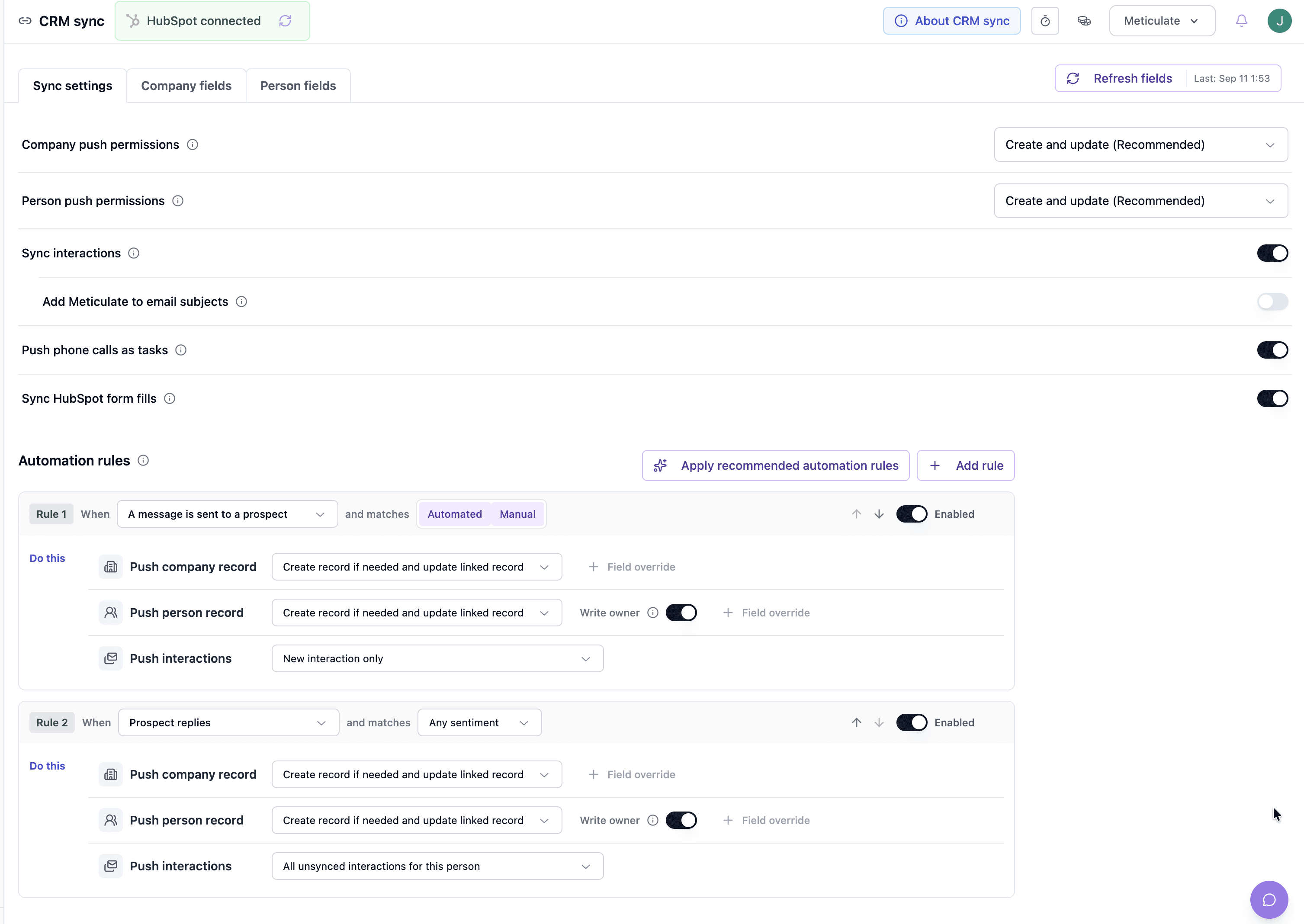
The HubSpot connected status confirms authorization. This example shows activity sync and rules for sent messages and replies; choose the settings that fit your workflow.
Review your field mappings
Open Company fields and Person fields to review the available mappings, including fields pulled from HubSpot and fields pushed to it. Match each Meticulate field to the intended HubSpot property and check its data type. Resolve missing-field warnings, then click Save for pending changes. If a property is missing, click Refresh fields.
Map company fields

Example company mappings. Review Recognition, Workflow, and Push fields, choosing the HubSpot properties your workspace uses.
Map person fields
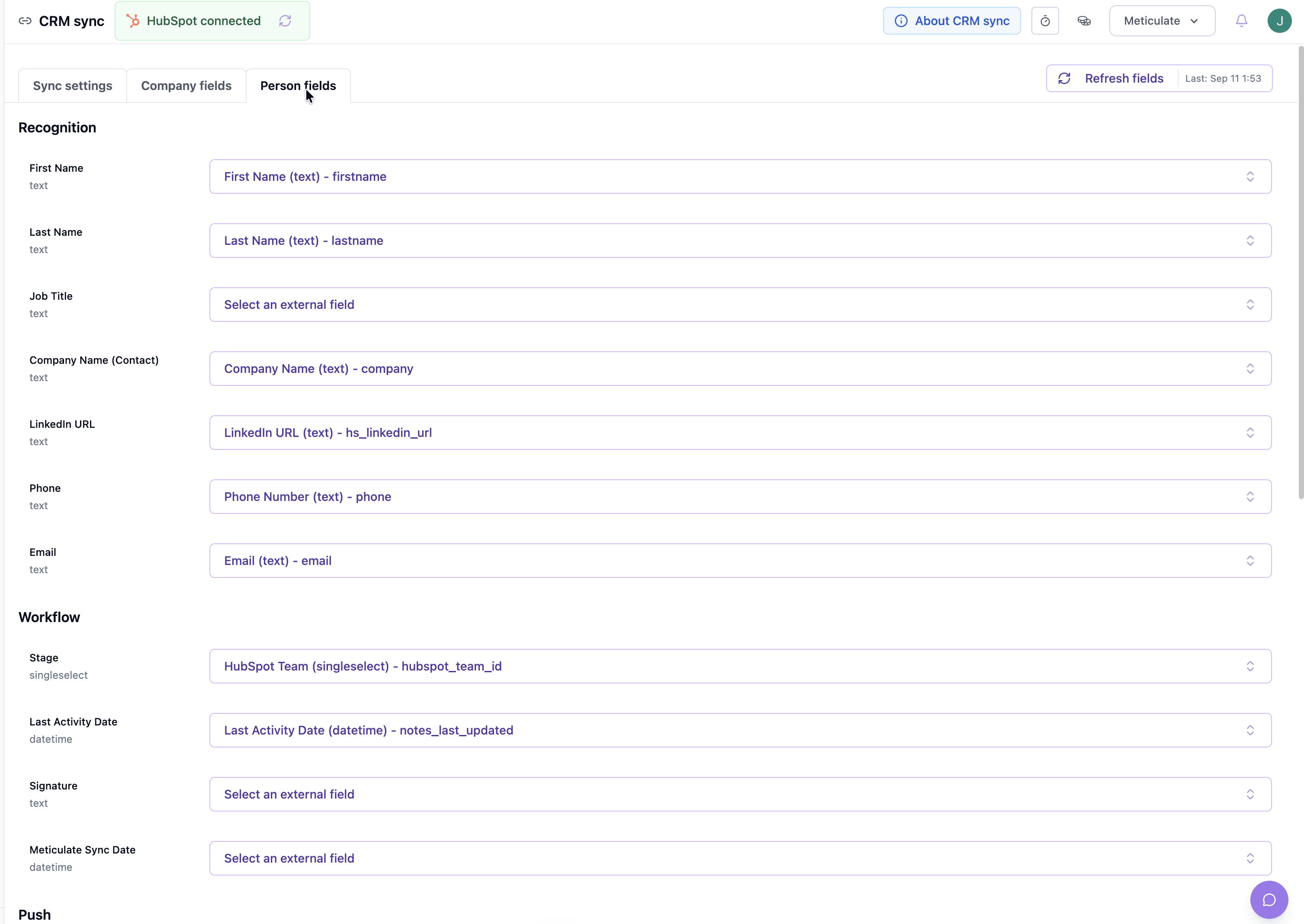
Example person-field layout. Choose mappings for your own workspace; for Stage, select the contact lifecycle-stage property your team uses.
Review prospecting exclusions
Configure the CRM lifecycle and deal stages that should exclude people or companies from prospecting, such as existing customers or active opportunities. Confirm the intended exclusions before starting outreach.
Check that CRM sync shows HubSpot connected.
After the initial sync has processed, open a known company or person in Meticulate and verify that the expected HubSpot context is present.
To test an outbound write, select an approved test person or company and use Push to CRM. Review the dialog options before confirming; this can create or update real HubSpot records.
Open the matching record in HubSpot and confirm that the intended properties and any selected activity were updated.
Initial sync time depends on the account and data volume. If records or fields are missing, use the troubleshooting steps below rather than repeatedly reconnecting.
CRM context, available automatically
Connected HubSpot companies, contacts, owners, and deals provide CRM context in Meticulate. Configured lifecycle and deal-stage exclusions help your team avoid outreach to the wrong accounts or people.
Push records when you need them
Use Push to CRM for selected people or companies. For people, the dialog can also include associated companies and unsynced interactions. Check the selected options and any displayed credit estimate before confirming.
Keep activity in HubSpot
Enabled automation rules can push the activity they cover. Depending on your settings, emails appear as emails, phone calls as calls, and LinkedIn messages as notes. Review activity-sync settings for sending accounts that already log to HubSpot to avoid duplicate activity.
Connect CRM is unavailable
Ask a Meticulate administrator to manage the connection. If CRM capability is unavailable for the workspace, contact your Meticulate team.
HubSpot reports a permission problem
Check that you selected the correct account and have permission to install the app. Ask your HubSpot administrator to review the requested access.
The connection needs attention
In Config → CRM sync, use Reconnect CRM and complete the authorization flow for the existing HubSpot account. Then recheck the connection status.
A property or update is missing
Use Refresh fields for newly added HubSpot properties. Check the field mapping, company/person push permissions, and the relevant automation rule. Confirm whether you expected an inbound sync or an outbound write.
To disconnect or remove your HubSpot integration, contact support@meticulate.ai. Our team will help you with the removal process.
Uninstalling Meticulate from HubSpot stops future CRM synchronization. Previously synced records remain in HubSpot. For questions about data retained in Meticulate or to request data deletion, contact our support team.
Contact your Meticulate team with the workspace name, the step that failed, and the error message. Never send passwords, access tokens, or private customer data.
CONTACT SUPPORT